

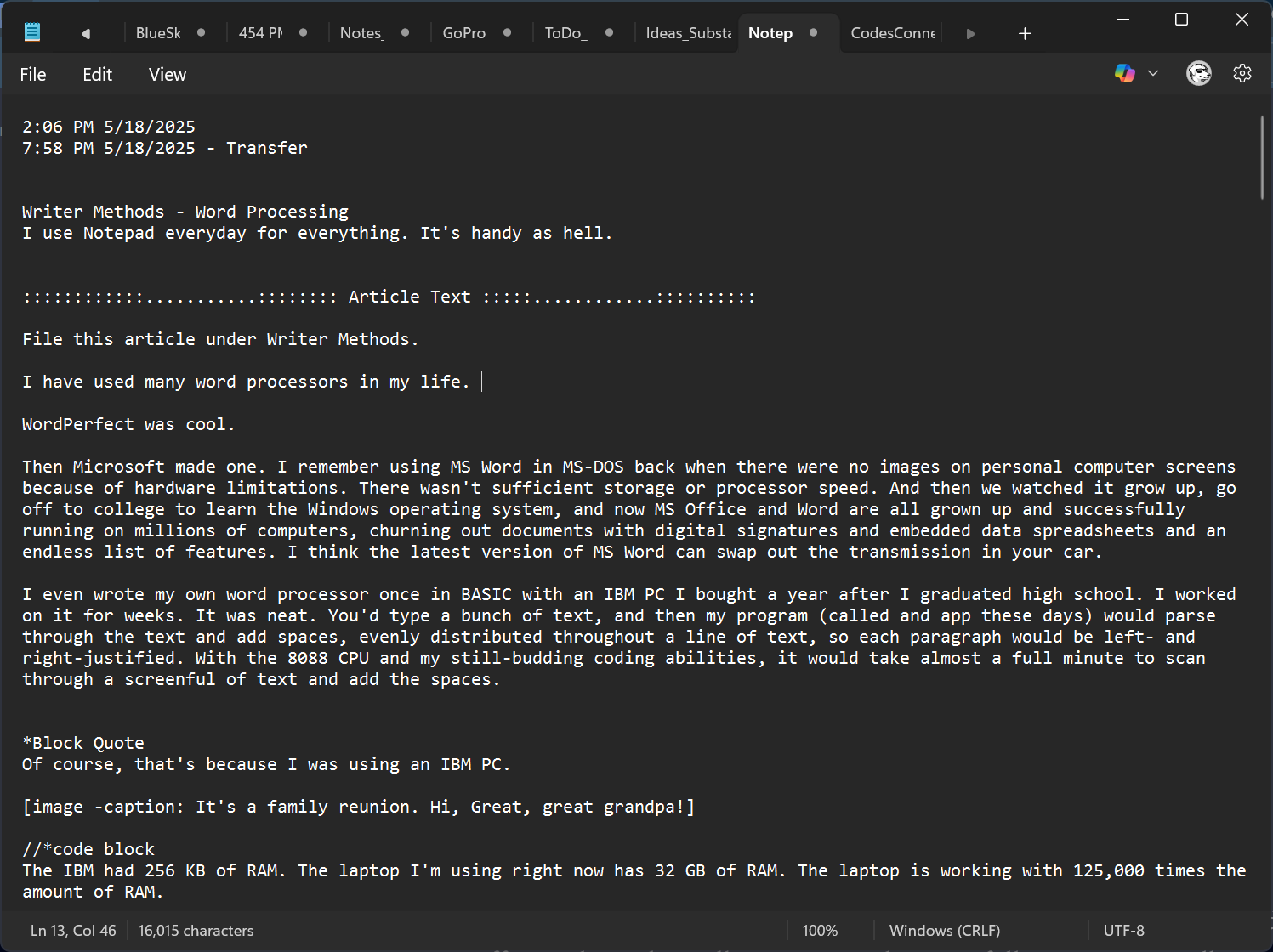
File this article under Writer Methods.
I have used many word processors in my life.
WordPerfect was cool.
Then Microsoft made one. I remember using MS Word in MS-DOS back when there were no images on personal computer screens because of hardware limitations: There wasn't sufficient storage or processor speed. And then we watched it grow up, go off to college to learn the Windows operating system, and now MS Office and Word are all grown up and successfully running on millions of computers, churning out documents with digital signatures and embedded data spreadsheets, auto-running code, and an endless list of other features. I think the latest version of MS Word can swap out the transmission in your car.
I wrote my own word processor once in BASIC with an IBM PC I bought shortly after I graduated from high school. I worked on the program for weeks. It was neat. You'd type a bunch of text, and then my program (called and app these days) would parse through the text and add spaces, evenly distributed throughout a line of text, so each paragraph would be left- and right-justified. With the PC’s 8088 CPU and my still-budding coding abilities, it would take almost a full minute to scan through a screenful of text and add the spaces.
Of course, that's because I was using an IBM PC.
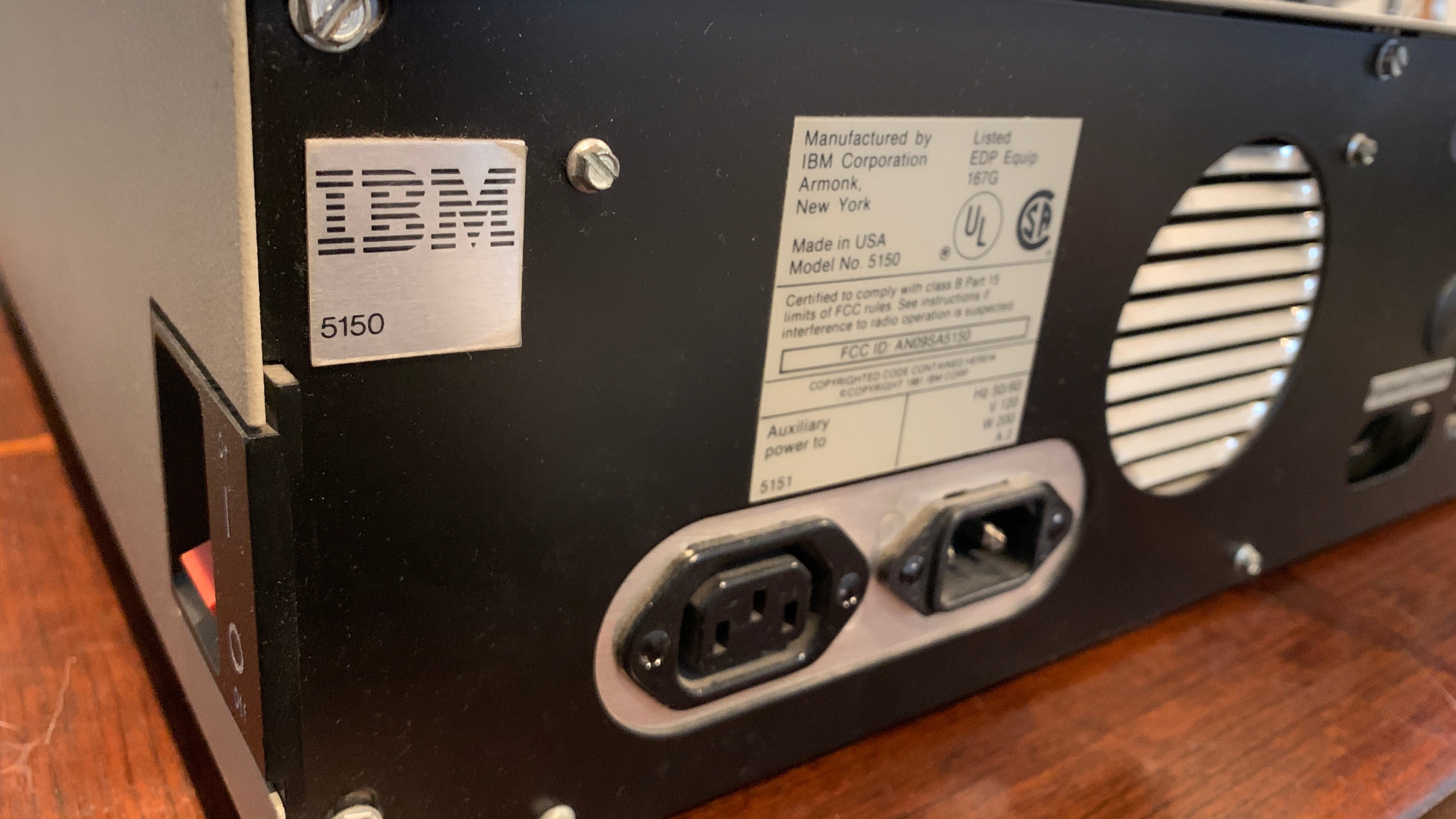
- The IBM had 256 KB of RAM.
+ The laptop I'm using right now has 32 GB of RAM. The laptop is working with 125,000 times the amount of RAM.

- The IBM used an Intel 8088 chip made in 1979 with 1 core, 1 thread, based on 16-bit x86 architecture.
+ This laptop uses an Intel Core i7-13700H made in 2023 with 14 cores, 20 threads, using Raptor Lake hybrid architecture. Wow! (Just kidding. I don't know what that is.)

- The IBM's 8088 CPU: 5 MHz base frequency, with a turbo speed of 16 MHz.
+ The laptop's i7-13700H: 2.4 GHz base frequency, turbo boosting up to 5.0 GHz. I don't know what all those numbers mean, but I think the laptop's brain is about 300 times faster.

Both computers cost roughly the same when they were purchased new.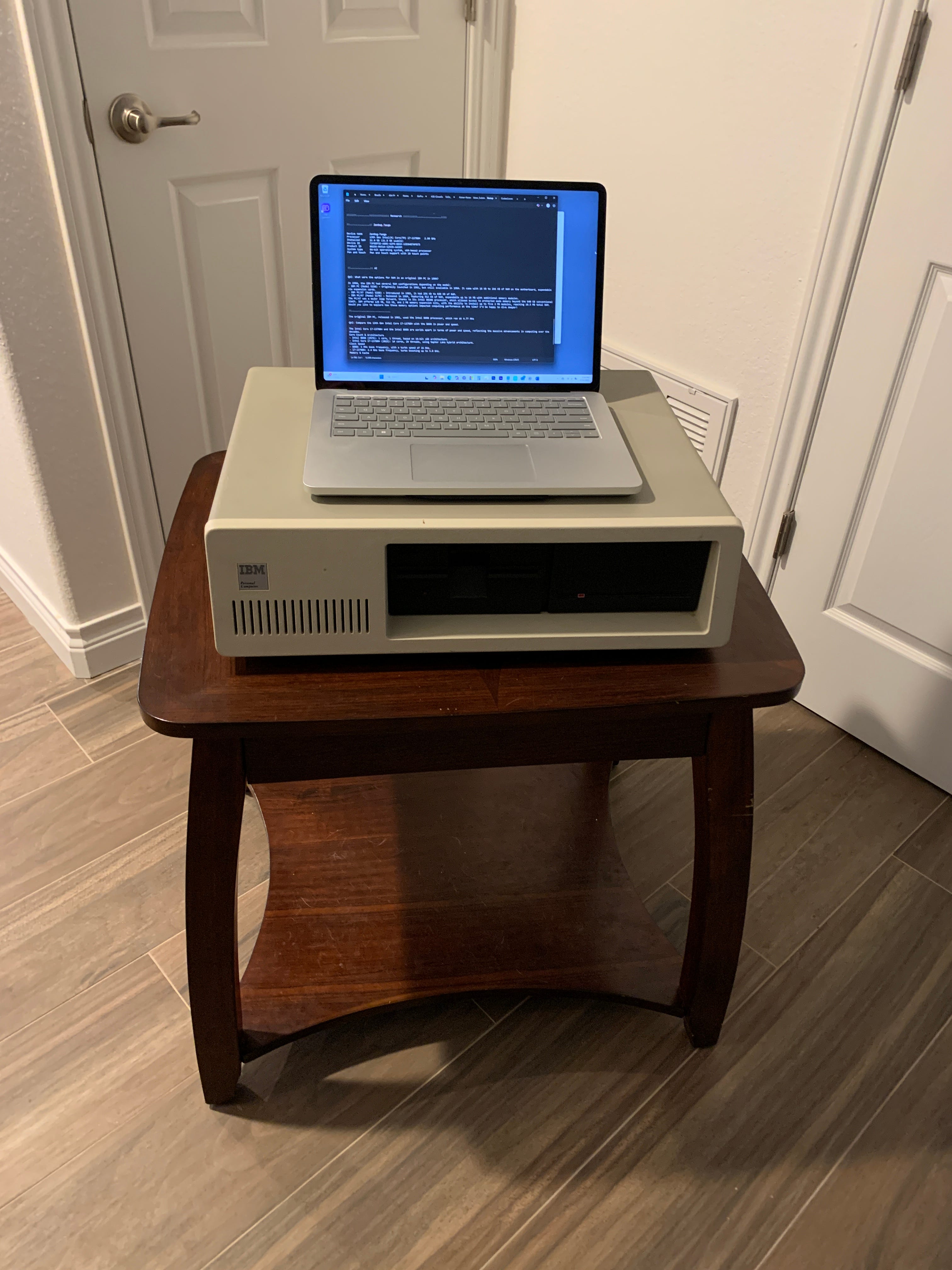
After a few minutes, the IBM system running my cute little program would justify a document. Today in MS Word, the Paragraph option [Justified] will do it instantly, and it adjusts to keep the text dual-justified as you type.
:=-- - -= -=- - --- = =- === = - -==- -= =--:
Today, however, I find that I no longer need or want formatting when I'm writing.
So I use Notepad. It makes simple .txt text files, and now that it has a spellchecker, there's nothing else I need.
Notepad is for the initial text. Once the text is, well, not complete, but when the first few drafts are done, the batter is mixed and it's ready for the oven, then I copy the entire text into its final location for finishing. In this case, it's the Substack writing interface. I start a new article but instead of writing, I paste the text I've written in Notepad into Substack. This becomes the new Master File. Then I go through the article and format things like headings and italics, add images, etc.
If it's a screenplay, I paste it into Final Draft 12, and then format the dialogue and location descriptions, etc.
Lately, I even write longer emails in Notepad before copying/pasting into a new message in Outlook. An added benefit of this is that I never accidentally send an email prematurely with a wayward keystroke or by accidentally clicking [Send].
The two primary features of Notepad I employ and enjoy are:
1) Lack of formatting, and 2) The [F5] key.
MS Word is nice to use for a resume or whatever. There are templates that are already formatted with proper margins and bullet points; tools to cram all your crap into a single page; and now AI can even write it for you to boost your stock a little bit.
Be sure to proofread it to ensure it leaves out all that drinking you do on the weekends, and let's face it, most weekdays too. There's no judgment from anyone here in the offices of Life. And Scoreboards. Whatever gets you through the day. Hang on while I refill my yen tsiang. What? Well, what do you use to smoke your opium?
Straying from the point a little, but it is that Notepad is badass.
Yeah, I said it.
Number 1: Lack of formatting
I don't want or need margins when I write. Without formatting, Notepad is a free-form place to type at will, wherever you want. When I get a mental note or idea as I'm writing that I can't focus on now but don't want to forget, I click into some empty space and type "//// note: " followed by the thought. Later I can search for that and move it into the proper place within the article I'm working on. If it's an unrelated thought, I can open a new Notepad file (it has tabs now) and paste the thoughtful text, which then becomes its own file to continue with later. Then I continue writing.
All the text is the same. You don't have to worry about your font, ever. You set it and forget it.
Notepad strips away the flash and leaves only the text, only the writing. It's pure.
It's also quite useful. Since it doesn't have formatting, pasting text into Notepad strips away any formatting it had.
:---- === -== =-- === -- -=-- === ---= - = ---- - -:
FOR MY FRIENDS AND COLLEAGUES in the sports entertainment industry who must work with team player names and jersey numbers, I have a tip for you. If you need to make animated or video headshots for the entire team, never retype the names and numbers manually yourself.
Never.
You can request a roster internally from your organization, but you can also find a list online. Usually, the team's website is a good place to go because it's public facing and thus, is most likely to be accurate. That's not always the case, but it's actually irrelevant. All you're doing is removing yourself as a possible error maker.
You can't make a typo if you're not typing.
Find the webpage that has the team roster, highlight it all, and copy it. Then paste it into a Notepad file to remove all the formatting.
Expert tip: If you're copying a grid of information from a roster webpage that includes columns of data you don't care about, like "Place of birth" or "College" or "Height and Weight," or if all you want is simply each player's name and number, paste the copied grid into a new Excel spreadsheet file. Once there, it's easier to highlight the columns you don't want and delete them. Also, you can move the information. Did they list players' last name first, but you want the first name first? Move the columns in Excel. If you want a dash between number and name, insert a column, type a dash in the top cell, and drag the lower-right corner of the cell downwards to fill the rest of the cells with dashes. Once the noise has been removed and all you have is better-formatted signal, copy and paste the spreadsheet into a new Notepad file.
Each column will be separated with a tab character in Notepad so you'll have tabs between number, dash, first name, last name, etc. To convert these tabs to spaces: Type a tab; highlight that tab and copy it; [Edit] [Replace] paste the tab character into the source textbox, type a space into the target textbox and click [Replace All].
Boom. A perfectly spelled and accurate list of players' names and numbers in basic, unformatted text that you can copy and paste into PhotoShop, AfterEffects, Premiere Pro, or whatever. And it was impossible for you to make a typo. Or let's put it this way: If there is a typo, it ain't your fault.
If this sounds complicated and you're thinking fuck that, I'll just retype it, know that once you do it a couple times, it's often quicker to do everything I've described than it is to read about it here.
This technique can be used by anyone. See any contact information on a website you want to hang on to? The name of a product you're interested in? Copy and paste the text from the website into Notepad. Then you can use the text for further reference, copying and pasting to search for details.
You can't always just scan the QR code.
Number 2: The [F5] Function Key
Once, when The Boy was just learning how to walk on his own and could cobble together a few basic words, I brought him to work with me at the arena. I had some content to load into the scoreboard display system that would take under an hour, and this was before remote work was so efficient. Mom couldn't watch him so I brought The Boy with me.
I'm sorry I don't have a photograph of this. The best I can do is a photograph of our two dogs (at the time) that I subcontracted to work an event at the arena for me.
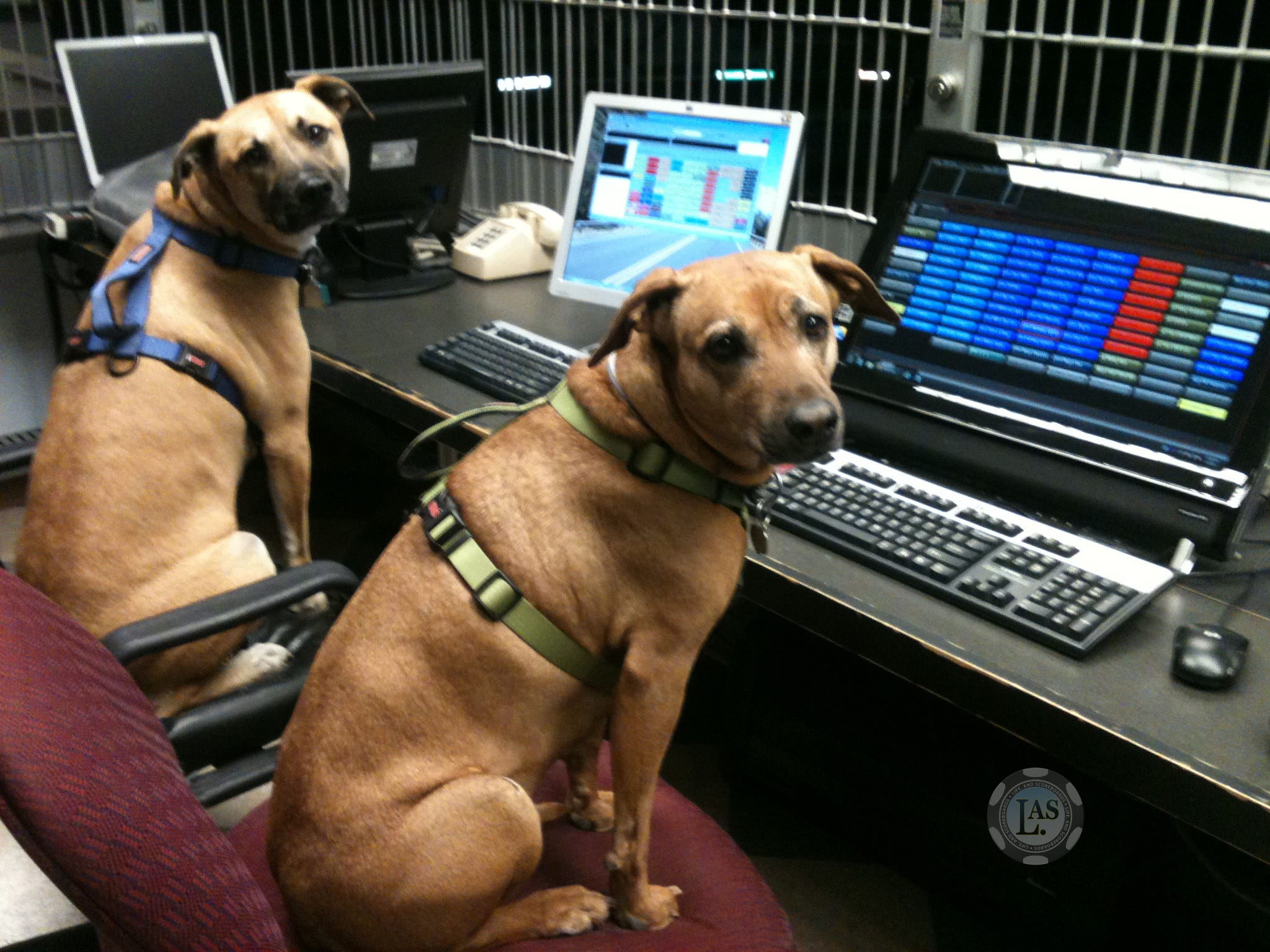
Just imagine that I am Laika on the right and The Boy is Sunny on the left.
To occupy him while I worked, I opened Notepad on his terminal, maximized it to the screen, and let him bang away on the keyboard while I worked at my terminal. I was talking to him while we worked. After 10 minutes I checked on his screen, and what I saw brought everything to a halt.
What the hell?
Among his screen of gibberish was the current date and time, perfectly formatted. I looked at him.
"How did you do that?"
Again, we don't have a photo of this event, but we have this one taken around the same time.

It was that smiley face that looked back at me.
I rolled his chair to the left and took over his terminal, hitting different combinations of keys until I discovered it was the [F5] key he had hit.
That moment changed my life because I have used that feature more days than not ever since, and that was 9 years ago.
When you hit the Function Key [F5] in Notepad, it will type the current time and date, like this: 4:16 PM 5/18/2025. I am writing this on Sunday the 18th of May, and we've got this particular sentence all the way down to the minute.
I use Notepad every time I start a project. Not just writing projects. Anything. It's especially useful for something that will take more than a day to complete. Having an ongoing issue with your cable company or the IRS requiring multiple phone calls? Looking for a job? Researching a home-improvement project? Create a Notepad file for it. I use [F5] to track updates. Every time I resume the project, I open the Notepad file, hit [F5] and then start typing. You can look back on any project, even years later, to see—to the minute—what you did or what was changed and how, according to your notes.
When I begin a Life. And Scoreboards article, it always starts as a new Notepad file, and the first thing I do is hit [F5] to mark the time it began. I do the same when we publish it and when we publish promo posts in BlueSky.
:-=-- - = == - -=-= === --= =- = = ---- - -== -= =-== ---:
I live in Notepad. Looking at the system, I see I have version 11.2501.31.0. (That's the actual version number. Welcome to the future.)
Notepad now has Dark Mode so I can type with light text on a dark background. Much easier on the eyes.
Notepad keeps a running count of your characters in the status bar on the bottom of the window. This article, including unpublished notes and research, is 15,897 characters and climbing as I continue typing.
Notepad has tabs now that you can re-order at will; or pull one off and make it its own window. When you close Notepad and open it again, it retains the files you had open previously.
Notepad has served me very well. There are few things I can rely on as confidently as Notepad. Its simplicity is perhaps its best feature. I highly recommend it.
I didn't really notice that I began the last four consecutive paragraphs with Notepad.
"Jesus Christ, is this guy falling in love with a machine?"
NO!
Don't be ridiculous.
I'm falling in love with software.
With Notepad. My beautiful, beautiful Note—okay, okay.
Back to work.
THE END_
NOTE: We have an addendum to this article. The photos have been found.
Writer Methods - Word Processing [ADDENDUM]
![Writer Methods - Word Processing [ADDENDUM]](https://substackcdn.com/image/fetch/$s_!KxYj!,w_280,h_280,c_fill,f_webp,q_auto:good,fl_progressive:steep,g_auto/https%3A%2F%2Fsubstack-post-media.s3.amazonaws.com%2Fpublic%2Fimages%2F06197ba7-c79d-44bb-9efa-6d121393e08f_1728x1134.png)
Good day, Dedicated L.AS Readers. We have an update, and it's good news.